BinEye 4.1: Gates, Adders and Arithmetic
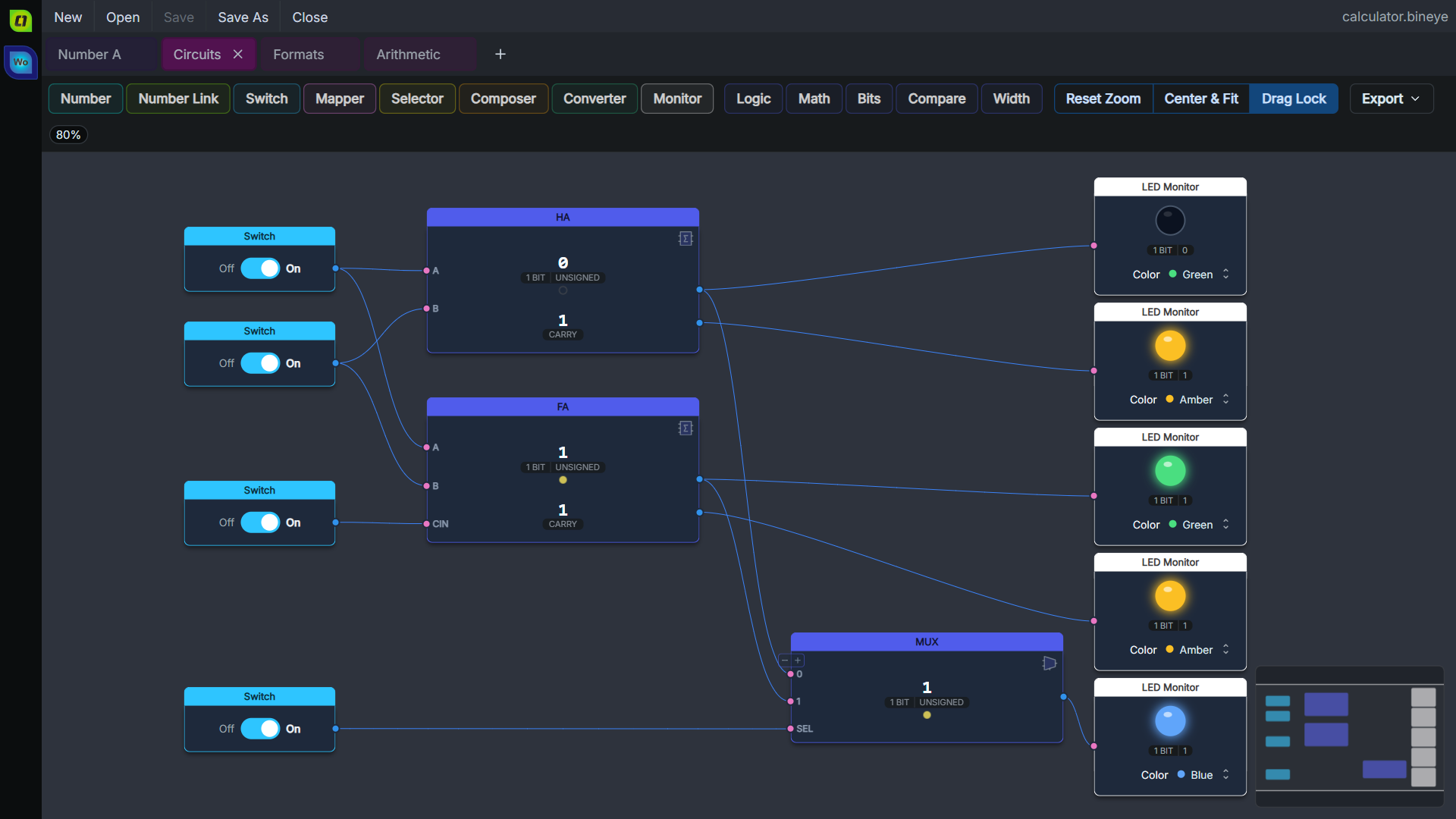
A week ago BinEye 2.0 brought calculator sheets. BinEye 4.1 fills them up: arithmetic with carry and overflow, logic gates up to XNOR, ready-made half adders, full adders and multiplexers, switches and LEDs. It also runs natively on Windows on ARM, and it’s in the Snap Store.
Why 4.1 After 2.0?
BinEye’s version numbers now continue its whole history. BinEye 1 was a Visual Basic program in 1999, BinEye 2 the C++ version in 2007, and this rewrite’s 1.x and 2.0 releases count as versions 3 and 4. So the release after 2.0.0 is 4.1.0. Nothing is skipped or missing, and documents are unchanged: 4.1 opens and saves the same files as 2.0.
What’s New in 4.1
🔹 Arithmetic, Bits, Compare and Width
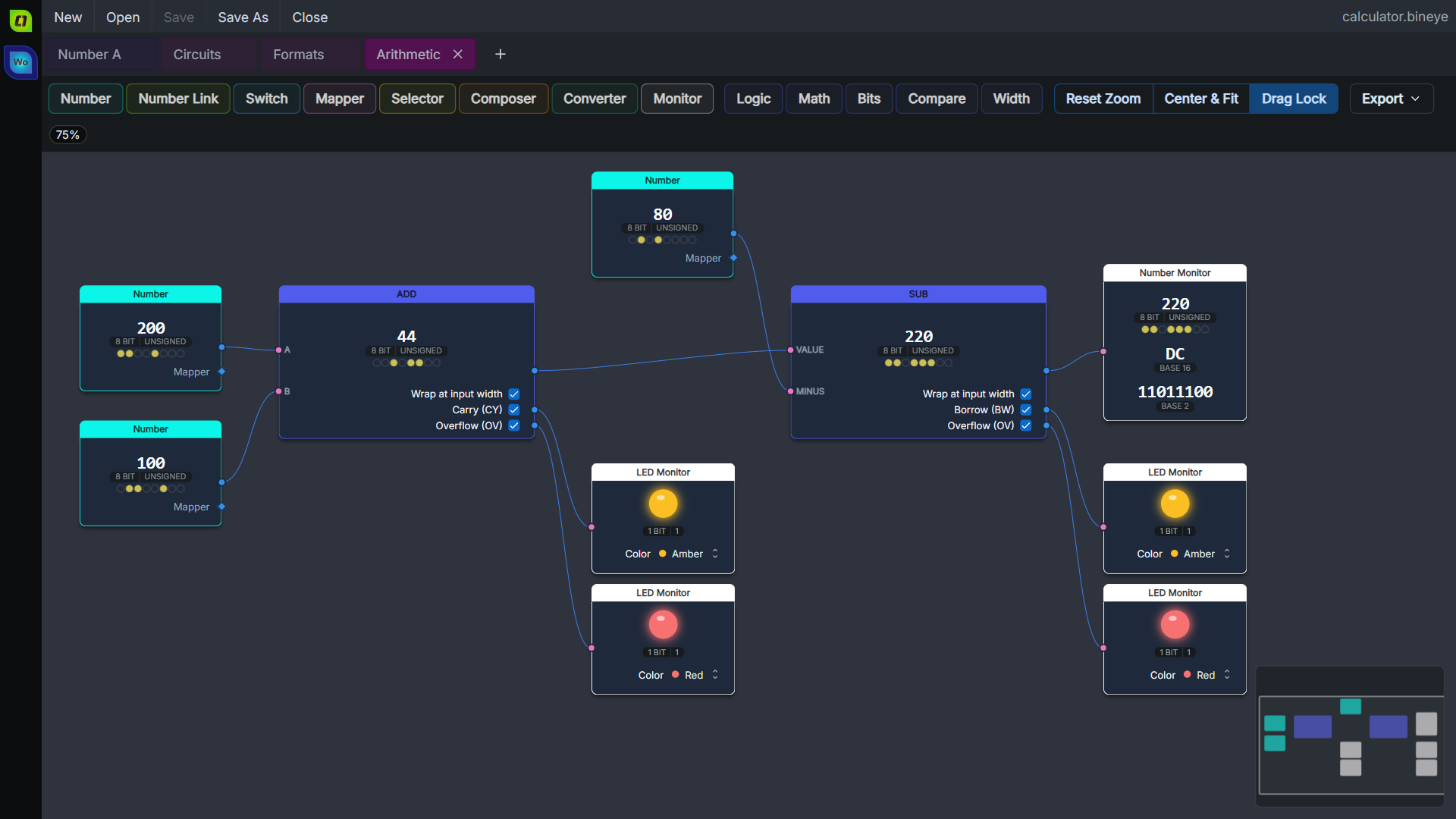
The calculator gets many new operations, grouped in five add menus with gate and shift symbols: Logic, Math, Bits, Compare and Width.
- Math: add, subtract, multiply, divide (with its remainder), modulo, negate, absolute value, minimum and maximum, with optional carry, borrow and overflow outputs
- Bits: rotate left and right, count the set bits, leading and trailing zeros, the highest set bit, parity, and read a single bit
- Compare: equal, not equal, less than, less than or equal
- Width and sign: sign-extend, zero-extend, truncate, resize, and mark a value signed or unsigned
🔹 Gates and Ready-Made Circuits
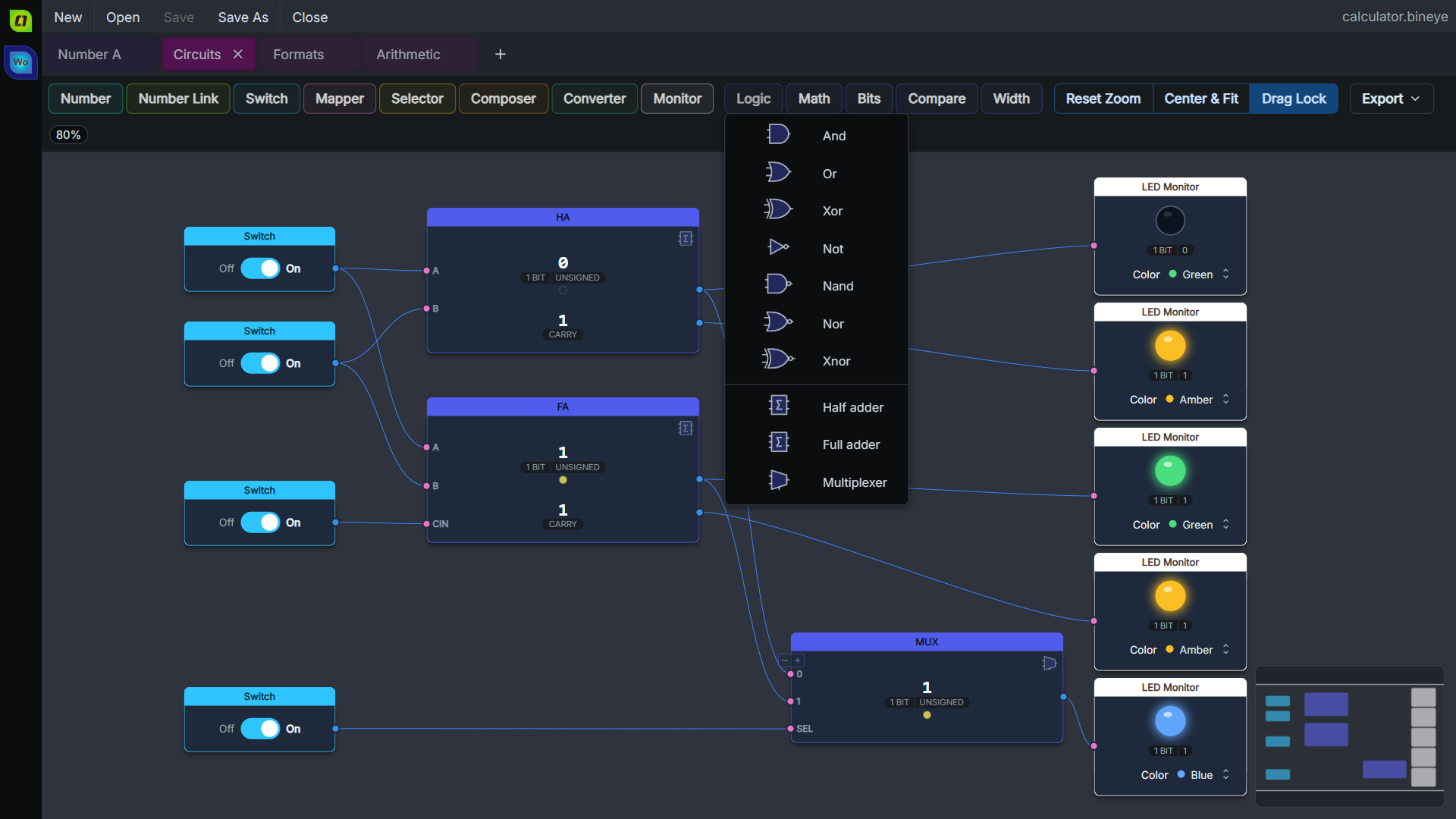
NAND, NOR and XNOR join AND, OR, XOR and NOT, and three circuits come ready-made: the half adder, the full adder (each with its carry) and the multiplexer.
🔹 Switches and LEDs
The Switch is an input you flip between 0 and 1, and the LED monitor lights up when its value isn’t zero, in green, red, amber or blue.
🔹 Numbers in Your Formats
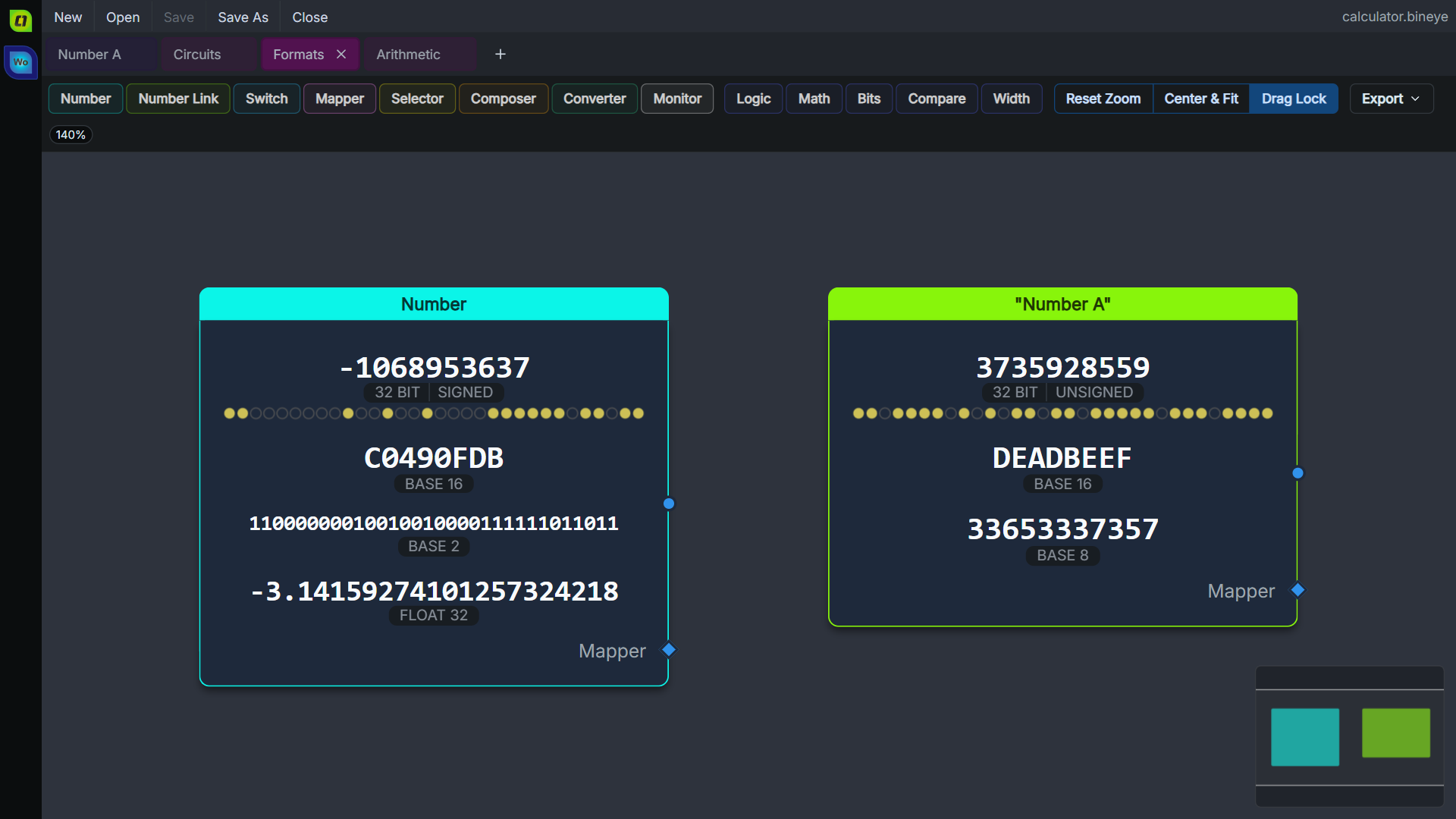
A Number node now shows its value in the formats you pick, as a number sheet does: hexadecimal, octal, binary, the other bases, float. Each gets a row you can type in. Its SIGNED / UNSIGNED label is a toggle, so 0x80 typed in hex reads -128 or 128 at a click. A Number linked to a number sheet gets the same rows and toggle, and they change the sheet.
🔹 Windows on ARM
There’s a native arm64 installer, portable exe and Store package. On an ARM Windows PC BinEye now runs natively instead of emulated, and the Microsoft Store picks the right package for your PC.
🔹 The Snap Store
On Linux, BinEye is in the Snap Store, beside the AppImage:
sudo snap install bineye
🔹 Smaller Things
- A right shift (
>>) keeps the sign of a signed value all along a chain of operations - An exported calculator sheet draws its nodes’ options as they look on screen
- Started without a file, BinEye opens straight into the document you had open
- A link BinEye can’t open no longer closes it
- Windows: names with letters outside your language settings work, the window rescales right between monitors with different scaling, and the Store app’s icons are sharp at every scaling
- macOS and Linux: a change made just before closing the window is no longer lost
Get BinEye 4.1
Windows
- Microsoft Store (picks x64 or ARM for you)
- Windows Installer (x64)
- Windows Portable (x64)
- Windows Installer (ARM64)
- Windows Portable (ARM64)
macOS
Linux
- Snap Store:
sudo snap install bineye - AppImage (x64)
Web and VS Code
- BinEye Online: in the browser, or installed as an app
- VS Code Extension, also on Open VSX
The install notes for each platform live inside BinEye, linked from its welcome screen: Windows (which download fits which PC), macOS, Linux (the snap and the AppImage), Web app, VS Code. Every download can be checked against the release’s SHA256SUMS.
Support and Community
- Discussion, bug reports and ideas: BinEye on Reddit
BinEye is closed source: it is developed in a private repository and doesn’t take outside pull requests. That’s a maintenance choice, not a secret. Feedback is always welcome.
Comments
No comments yet.
Manage a comment you wrote